 Dynamic Mosaic -
Help Dynamic Mosaic -
Help |
Dynamic Mosaic -
Help
File locations
This tab
provides an overview of all the important locations that the application needs
to run properly. There are five locations needed to run properly. All these
locations are set at the installation and stored in the configuration file
(default: C:\Users\Public\Documents\APP\Dynamic
Mosaic\Settings\DynamicMosaic.ini). It is
highly recommended to keep these locations as they are installed. In those cases
where the teteherd picture / booth picture needs a different folder, e.g. an
external hard disk, the location is changed, and thoroughly tested before a show
is started. Please be aware that these locations are absolute paths to the
data folder, and are stored immediately in the configuration file. When for instance the
external had drive is removed the applications now points to a non existing folder
and will not run properly. Here you will find one option:
to randomize the source image each time you start the application ('Randomize source image at start'). This feature is turned
on by default. You need to deactivate it at your convenience, and will remain
inactive after unchecking the tickbox. Also when you restart the app. It will
then always start with the first image (alphabetical sequence in the image
folder).
The following locations are used: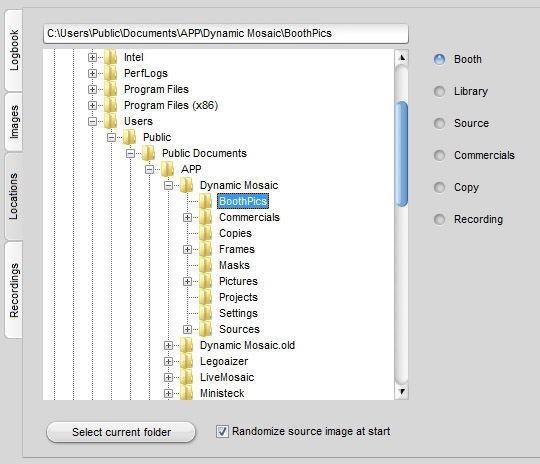
Booth folder. This is the folder that is listened to by the application, and
when a picture is found (e.g. from a tethered camera or photo booth
source) the new picture is first copied in its original size to a save
location (the 'Copy' folder), and then made
ready for transport to the mosaic. Each picture will be resized to a size that
fits with the mosaic (1200 pixels width). The original picture will therefore
always be 1200 pixels in size. The current version
will not save the original snapshot in full size. The main reason is to
avoid unwanted resizing time when new mosaics are made from existing library pictures (incl.
newly added via the snapshots).
Library folder. This is the initial photo library folder
where at least 500 pictures must be stored from which the initial mosaic can
be made. When too few pictures are available the mosaic impression will look
bad. When new pictures are found from the 'Booth' folder they are added to
this folder as well (next to a copy in the 'Copy'
folder).
Source folder. This is the location of the source picture
from which the mosaic will be made. The folder content is shown in the 'Sources' tab (top viewer). Each source picture is made
active in the Sources tab and can be checked on or off (including/excluding in
the event show). Most important: the size of the picture will determine
the size of the mosaic! The pre-installed source pictures have two aspect
ratios: 4:3 and 16:9 (or in actual sizes:640 x 480 and 960 x 540 pixels). It
is highly recommended to also keep these files small, like the installed sizes
to avoid large resizing actions for each mosaic and keep the speed of the
application.
Commercials folder. This is the folder in which all the
commercial pictures and video files must be stored. Similar to the sources,
this folder is shown in the 'Sources' tab. There can
only be two kinds of files in this folder: jpg, bmp, jpg or png picture files,
and .avi and .mpg video files. The .avi files must have a codec that is available
in the windows system to be recognized by the application. VLC codecs
are not shared, so when showing correctly in VLC is no guarantee it will be
recognized by Dynamic Mosaic. The sound signal is preferably absent, since
also sound codecs must be available in the windows system. In case sound is
recognized and must be heard, you need to also unmute the sound via the 'Sources' tab. You also need to test first before putting
the event into
action.
Copy folder. This is the folder in which a copy is stored
from each booth/tethered image. The image in copied in the original size, and
when many files are stored make sure there is enough space to store them all.
Recording folder. This is the folder in which the
recorded movie will be saved. In case a raw file format is used, this
locations should have GB space to avoid running low of disk
space.